

Every date matters.
Grocery store inventory management software
Spot stock approaching expiry. Investigate shelf gaps. Follow up on stock discrepancies.
StokSmart helps grocery and supermarket teams check dates and quantities, record findings and coordinate work across stores.
Designed to work alongside your ERP or POS, with integration assessed for your setup.
Your daily stock challenges
Which stock problem keeps coming back?
Start with the situation your team recognises.
01
Too little time before expiry.
Staff discover products close to expiry, leaving little time to act. Which items need attention, and who decides what happens next?
Explore expiry checks02
Stock is recorded. The shelf is empty.
An empty shelf can mean a missed sale. Is the recorded stock in the backroom, misplaced, or missing?
Explore availability checks03
The same stock differences keep returning.
Repeated discrepancies create more recounts and uncertainty. What was received or counted, and has the difference been reviewed?
Explore receiving and stock countsExpiry date management
Know what’s nearing expiry.
Expiry checks need more than a date on a report. Staff need to establish what is physically there and which stock needs attention.
Expiry stock check
Plain yogurt · 150 g
Label information


PLAIN YOGURT
150 g
EXP 29 OCT 2026
OCR-assisted capture
1
Capture label information
OCR helps read product-label information on supported labels and devices, reducing manual entry during checks.
Recorded expiry
29 Oct 2026
Example check date
26 Oct 2026
Expiry alert
Based on recorded date
2
Identify approaching expiry
Configured alerts help teams identify stock requiring attention using recorded expiry information.
Physical check
Store
Store 01
Location checked
Chilled aisle
Quantity checked
12 units
Staff verify the product, date and quantity.
3
Verify the stock
Staff check the product, date and quantity, then record their findings for follow-up.
Give your team a checked stock record to support the next decision.
Markdowns and stock status
Decide the action.Control the change.
After a stock check, store teams need a clear route to request a change. StokSmart supports price and stock-status requests through the permissions and integration agreed for your operation.
Checked stock finding
Workflow illustrations · example data
Markdown requests

PLAIN YOGURT
150 g
EXP 29 OCT 2026
Markdown request
Action
Price adjustment
Decision
Authorised pricing role
Scope
Connected pricing setup
Request a price adjustment for near-expiry or slow-moving stock.
Confirm who can authorise it and which stock the connected ERP update will affect.
Status changes

Status request
Finding On the field
Damaged stock
Review / Approval
Manager
ERP
Adjust stock record
For damaged or lost stock, submit findings and photo evidence for manager review before a supported update to the connected stock record.
Grocery workflow example
From an expiry check toa recorded price change.
Consider a store with yogurt approaching expiry. Follow a markdown request from the physical check to the recorded price change.
Plain yogurt · 150 g | Store 01 · Chilled aisle
Workflow illustration · example data
1
Verify the finding
A store employee checks the product, expiry date and quantity, then records the findings.
PLAIN YOGURT
150 g
EXP 29 OCT 2026
Physical finding
Expiry date:
29 Oct 2026
Quantity checked:
12 units
Store 01 · Chilled aisle
2
Make the pricing decision
The authorised pricing role reviews the request and approves the change within the confirmed stock scope.


Pricing decision
Authorised pricing role
Example price
$3.00
$2.40
Scope follows the connected setup
3
Send the price update
The agreed change is sent to the connected ERP through the configured integration.
StokSmart

Agreed price:
$2.40
Connected ERP
Price update:
$2.40
4
Confirm what changed
StokSmart confirms the successful ERP price update and records the result in the action history.
Agreed price:
$2.40
ERP price record:
$2.40
Action history
ERP price update confirmed
On-shelf availability
Stock is recorded. Is it available to buy?
StokSmart flags suspicious no-sales patterns and helps teams investigate shelf gaps. Staff check the shelf, backroom and relevant storage locations to establish what is physically available.
Plain yogurt · 150 g / Store 01
Workflow illustration · example data
Two reasons to investigate
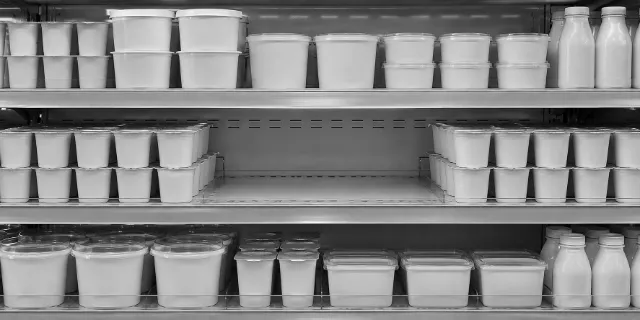
Shelf gap

PLAIN YOGURT
Stock recorded. Shelf empty.
No-sales signal
PLAIN YOGURT
150 g
Recorded stock
Present
Sales activity
Unexpected inactivity
Stock recorded. Sales have stopped.
Shelf · Recorded stock remains
PLAIN YOGURT
Backroom / storage

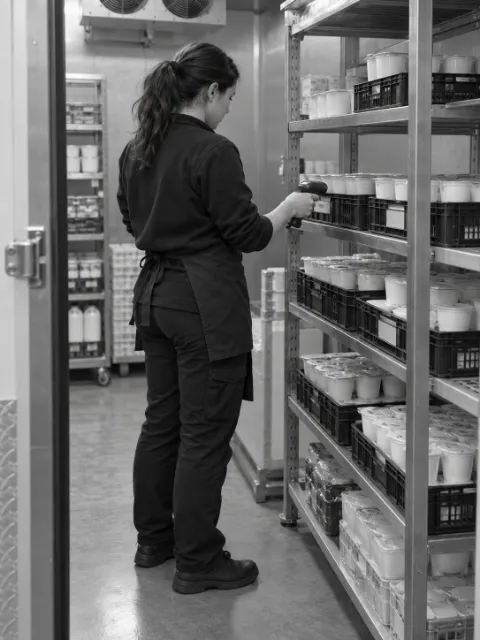
Staff check the shelf, backroom and relevant storage locations.
Possible findings

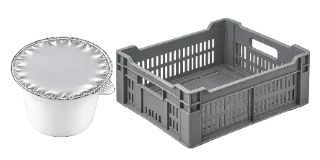
Stock found away from the shelf
Staff locate available stock and replenish the shelf where needed.

Stock not found
Staff record their findings and submit the discrepancy for review before a stock correction.

Stock available on the shelf
Record the confirmed availability and review why sales are quiet.


Configured POS sales triggers can also generate backroom picking tasks to support replenishment.
Receiving and cycle counting
Verify what arrives.Check what’s on hand.
Reliable stock figures need checks when goods arrive and throughout store operations. StokSmart supports receiving verification and planned counts to help teams investigate differences.
Plain yogurt · 150 g / Store 01
Workflow illustration · example data · Two separate example checks
At receiving
Full Control
Verify all received quantities against the delivery record and record any differences.
Good Faith Receiving
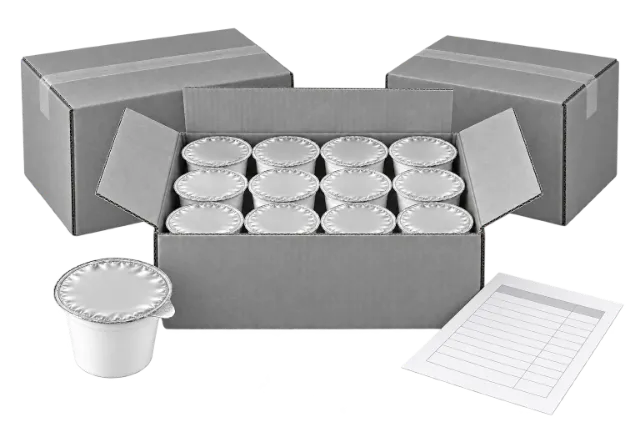
Use Smart Sampling to select deliveries or cartons for verification. Findings cover only the stock checked.
Receiving example · Good Faith Receiving

PLAIN YOGURT
150 g
PLAIN YOGURT
150 g
Expected in selected cartons
120
units
Checked in selected cartons
114
units
Difference: 6 fewer units
Selected cartons only. The remaining delivery is outside this example.
Stock control in store
Focused Count
Target checks on negative stock, suspicious no-sales patterns and top-selling products.
Routine Count
Planning assistance
Follow an annual cycle-count strategy, with AI-assisted planning based on the store’s available staff capacity.
Store count example
Recorded in count scope
96
units
Physically counted
90
units
Difference: 6 fewer units
Count scope: plain yogurt in the chilled aisle.


Review differences before updating stock records through the agreed correction process.
Team coordination across stores
Know who owns the work.See what needs attention.
StokSmart helps store teams plan and carry out checks, while managers review findings and coordinate follow-up across locations.
Plan and assign checks
Assign checks across stores, using item value, stock movement and risk to guide priorities and store capacity to inform scheduling.
Keep findings in context
Record what staff find and keep related messages connected to the stock issue.
Review outstanding work
Use management views and available action history to review requests and determine the next follow-up.
Workflow illustration · example data · Separate coordination example
Manager follow-up
Store
Check
Assigned to
Next follow-up
Store
Store 01
Check
YG-01 · Yogurt count
Assigned to
Store 01 stock team
Next follow-up
Review count difference
Store
Store 02
Check
Shelf availability
Assigned to
Store 02 stock team
Next follow-up
Check locations
Store
Store 03
Check
Receiving check
Assigned to
Store 03 stock team
Next follow-up
Review findings
YG-01 · Plain yogurt · 150 g
2-unit difference
Store 01 · Chilled aisle
Recorded:
12 units
Counted:
10 units
Review owner: Store 01 manager
Action history: check assigned · finding recorded
Operational fit and integration
Fit with your systems and store routines.
StokSmart connects inventory data with physical checks and reviewed actions alongside supported ERP and POS systems. The setup depends on your systems and the workflows you want to support.
How the work connects

ERP / POS
Supported systems
Agreed data inputs



Supported updates

Checks, findings & review
Checks & store tasks
Dates & findings

Store teams
Physical work
Illustrative relationships · scope confirmed during setup
Data and inputs
Establish which product, location, stock, sales and delivery records come from your systems, and which dates or findings staff capture.
Actions and updates
Staff carry out physical checks and store tasks. Supported price or stock-record updates follow agreed permissions and the confirmed integration.
Plain yogurt · Store 01 · Chilled aisle
Example data
Recorded: 12 units
Counted: 10 units
The finding is reviewed before any supported stock-record update.
Store setup
Agree device requirements, user access, data preparation and technical responsibilities with your operations and IT teams.
Grocery FAQs
What would this mean for your stores?
StokSmart supports expiry-date capture during store checks, including OCR on supported labels and devices. Your setup needs to establish how dates are checked, linked to the relevant stock and maintained as quantities change.
That scope must be confirmed for your connected pricing system. Recording a separate expiry date does not automatically give those items a separate price. We’ll establish which stock the update affects before proposing a targeted markdown workflow.
No. A sample covers only the items or cartons actually checked. Smart Sampling helps select receiving checks; the findings relate to that selected stock. They do not establish that the whole delivery was counted.
Explore StokSmart for your grocery operation
Bring the stock problem your team keeps chasing.
Share one recurring stock issue, your store setup and your current ERP or POS. Explore the relevant StokSmart workflow and discuss how its checks, decisions and follow-up could fit your operation.
Book a Grocery Demo